
Slowly Changing Dimension Types 0, 4, 5, 6 and 7

Slowly Changing Dimension Types 0, 4, 5, 6 and 7

Ralph introduced the concept of slowly changing dimension (SCD) attributes in 1996. Dimensional modelers, in conjunction with the business’s data governance representatives, must specify the data warehouse’s response to operational attribute value changes. 
Core SCD approaches: 
Type 1 (overwrite), 
Type 2 (add a row), and 
Type 3 (add a column). 
Since legibility is a key component of the Kimball mantra, we sometimes wish Ralph had given these techniques more descriptive names, such as “overwrite” instead of “type 1.” But at this point, the SCD type numbers are part of our industry’s vernacular.
We have written about more advanced SCD patterns, such as the 2005 article entitled “Slowly Changing Dimensions are Not Always as Easy as 1, 2, 3.” However, we’ve not consistently named the more advanced and hybrid techniques. With the third edition of The Data Warehouse Toolkit (Wiley, 2013), we’ve decided to assign “type numbers” to several techniques that have been described, but not precisely labeled in the past. Our hope is that more specific technique names will facilitate clearer communication between DW/BI team members.
Type 0: Retain Original
With type 0, the dimension attribute value never changes, so facts are always grouped by this original value. Type 0 is appropriate for any attribute labeled “original,” such as a customer’s original credit score, or any durable identifiers. Type 0 also applies to most date dimension attributes.
Type 4: Add Mini-Dimension
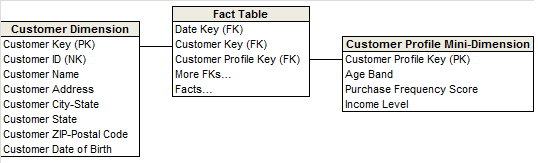
The type 4 technique is used when a group of dimension attributes are split off into a separate mini-dimension. This approach is useful when dimension attribute values are relatively volatile. Frequently-used attributes in multi-million row dimension tables are also mini-dimension design candidates, even if they don’t change frequently. A surrogate key is assigned to each unique profile or combination of attribute values in the mini-dimension. The surrogate keys of both the base dimension and mini-dimension profile are captured as foreign keys in the fact table.
The following type 5, 6, and 7 techniques are hybrids that combine the basics to support the common requirement to both accurately preserve historical attribute values, plus report historical facts according to current attribute values. The hybrid approaches provide more analytic flexibility, albeit with greater complexity.
Type 5: Add Mini-Dimension and Type 1 Outrigger          
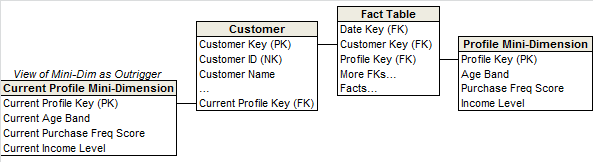
The type 5 technique builds on the type 4 mini-dimension by embedding a “current profile” mini-dimension key in the base dimension that’s overwritten as a type 1 attribute. This approach, called type 5 because 4 + 1 equals 5, allows the currently-assigned mini-dimension attribute values to be accessed along with the base dimension’s others without linking through a fact table. Logically, we typically represent the base dimension and current mini-dimension profile outrigger as a single table in the presentation layer. The outrigger attributes should have distinct column names, like “Current Income Level,” to differentiate them from attributes in the mini-dimension linked to the fact table. The ETL team must update/overwrite the type 1 mini-dimension reference whenever the current mini-dimension changes over time. If the outrigger approach does not deliver satisfactory query performance, then the mini-dimension attributes could be physically embedded (and updated) in the base dimension.
Type 6: Add Type 1 Attributes to Type 2 Dimension
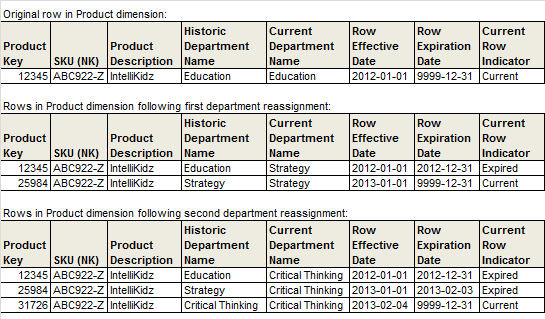
Type 6 builds on the type 2 technique by also embedding current attributes in the dimension so that fact rows can be filtered or grouped by either the type 2 value in effect when the measurement occurred or the attribute’s current value. The type 6 moniker was suggested by an HP engineer in 2000 because it’s a type 2 row with a type 3 column that’s overwritten as a type 1; both 2 + 3 + 1 and 2 x 3 x 1 equal 6. With this approach, the current attributes are updated on all prior type 2 rows associated with a particular durable key, as illustrated by the following sample rows:
Type 7: Dual Type 1 and Type 2 Dimensions
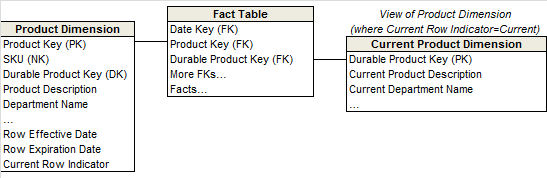
With type 7, the fact table contains dual foreign keys for a given dimension: a surrogate key linked to the dimension table where type 2 attributes are tracked, plus the dimension’s durable supernatural key linked to the current row in the type 2 dimension to present current attribute values.
Type 7 delivers the same functionality as type 6, but it’s accomplished via dual keys instead of physically overwriting the current attributes with type 6. Like the other hybrid approaches, the current dimension attributes should be distinctively labeled to minimize confusion.
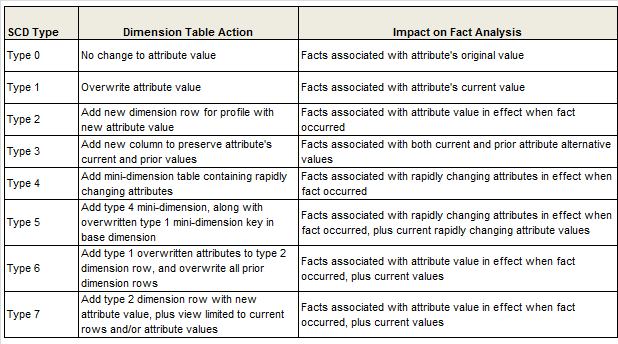
Finally, here’s a figure from the Data Warehouse Toolkit, Third Edition that highlights the implications of each slowly changing dimension technique on the analysis of fact table performance metrics. As we’ve warned in the past, there’s more to consider than simply 1, 2 and 3!
Comments

Popular posts from this blog

MicroStrategy URL API Parameters

MicroStrategy URL Structure The following table summarizes the root URL structure used for every request to MicroStrategy Web. Environment Main Application URL Administration URL J2EE http://webserver/MicroStrategy/servlet/mstrWeb http://webserver/MicroStrategy/servlet/mstrWebAdmin .NET http://webserver/MicroStrategy/asp/Main.aspx http://webserver/MicroStrategy/asp/Admin.aspx Every request sent to MicroStrategy Web calls a central controller. Parameters are appended to  Main.aspx  or  mstrWeb  (in a .NET and J2EE environment, respectively) to indicate to the controller how the request should be internally forwarded and handled. The following examples show a URL for accessing a MicroStrategy folder when the user does not have an existing session. The URL contains not only the parameters needed to connect to MicroStrategy Web, but also the parameters needed to log on and create a session. J2EE environment: <a href="http:...

Case functions Microstrategy

Ca se functions Microstrategy Case functions return specified data in a SQL query based on the evaluation of user-defined conditions. In general, a user specifies a list of conditions and corresponding return values. Case This function evaluates multiple expressions until a condition is determined to be true, then returns a corresponding value. If all conditions are false, a default value is returned.  Case  can be used for categorizing data based on multiple conditions. This is a single-value function. Syntax Case ( Condition1 ,  ReturnValue1 ,  Condition2 , ReturnValue2 ,...,  DefaultValue ) Example Case(([Total Revenue] < 300000), 0, ([Total Revenue] < 600000), 1, 2) sum(Case (Day@DESC in (“Sat”,”Sun”), Sales, 0) {~+} Sum(Case(Category@DESC In("Books","Electronics"),Revenue,0)){~+} CaseV (case vector) CaseV  evaluates a single metric and returns different values according to the results. It can be used to perfo...

Apply or Pass-through functions in Microstrategy

Ap ply (Pass-Through) functions MSTR Apply functions provide access to functions or syntactic constructs that are not standard in MicroStrategy but are provided by various RDBMS systems.. Syntax common to Apply functions Apply Function Name   ("expression with placeholders", Arg1, Arg2, Arg3, …ArgN) where: Apply Function Name  – is a generic name used for the predefined pass-through functions described above expression with placeholders  – is the string describing the actual expression or syntax that the engine uses while generating the SQL and which is sent to the RDBMS. The placeholders are represented by #0, #1, and so on. "#" is a reserved character for MicroStrategy. Arg  – is an argument that replaces the parameter markers in the pattern. Arg1 replaces #0, Arg2 replaces #1, and so on. There are   five  pre-defined Apply functions to replace regular, predefined functions of the same type. For more details, cli...

Microstrategy Dossiers explained

Microstrategy  Dossiers With the release of MicroStrategy 10.9, we’ve taken a leap forward in our dashboarding capabilities by simplifying the user experience, adding storytelling, and collaboration.MSTR has  evolved dashboards to the point that they are more than dashboards - they are  interactive, collaborative analytic stories . Ultimately, it was time to go beyond dashboards, both in concept and in name, and so  the've  renamed VI dashboards to  ‘ dossiers ’.  Dossiers can be created by using the new Desktop product or Workstation or simply from the Web interface which replaces Visual Insights. All the existing visual Insights dashboards will be converted to Dossiers   With MicroStrategy 10.9, there was an active focus on making it easier to build dashboards for the widest audience of end users. To achieve this, some key new capabilities were added that make it easier to author, read, interact and collaborate on dashboards ...

Create an alert-based subscription in MicroStrategy Distribution Services

Create an alert-based subscription in MicroStrategy Distribution Services on Web Subscription to a report or Report Services document which will be executed when a certain conditional threshold is met based on another executing report. For example, a scheduled report executes which shows the Revenue by day for the past week. If the Revenue on any one day falls below a certain value, a subscription to another report or Report Services document can be triggered and delivered to a recipient. An alert based subscription can only be created directly on a report; however, another report or Report Services document can be delivered when the alert based subscription is triggered. Note: you need a grid report to create an alert and you cannot create if you want to create on a document with text boxes. The following example will walk through the basic steps on how to setup a subscription based on an alert like this: Follow the brief  steps bel...

Microstrategy Document Autotext macros:

Autotext  code/macros in  Microstrategy Document/dashboard This is a list of the available auto text macros that the Report Services Document engine recognizes. The following auto text codes allow you to add  document variable information to your document. These auto text codes are automatically replaced by information about the document. Auto text codes for MSTR document/dashboard:  AUTOTEXT DESCRIPTION   {&PAGE}  Display the current page.  {&NPAGES}  Display the total number of pages.  {&DATETIME}  Display the current date and time.  {&USER}  Display the user name that is executing the Report Services Document.  {&DOCUMENT}  Display the document name.  {&DOCUMENTID}  Display the document ID.  {&DESCRIPTION}  Display the document description.  {&PROJECT}  Display the project name.  {&EXECUTIONTIME}  Dis...

Settings for Outer Join between metrics in MicroStrategy

Settings for Outer Join between metrics in MicroStrategy MicroStrategy adopts multi-pass logic to determine the execution plan for a report. This means that every metric is evaluated in separate SQL passes. Outer Joins come into play when MicroStrategy Engine merges the results from all SQL passes into one report. For a multi-pass report, different Outer Join behaviors can give the user completely different results. In addition, report metrics can be of different types which can, in some cases, influence the result of the outer join. In MicroStrategy, there are two settings that users can access to control Outer Join behavior : Formula Join Type and Metric Join Type . Metric Join Type: VLDB Setting at Database Instance Level Report and Template Levels Report Editor > Data > Report Data Options Metric Level   Metric editor > Tools > Metric Join Type Control Join between Metrics Formula Join Type: Only at Compound/Split...

Create a Visualization Filter in a Dossier

Create a Visualization Filter You can select attribute values to filter data that appears in a visualization by creating an attribute filter. Create a visualization filter by dragging attributes and metrics from the Datasets panel. To create an attribute filter Open the dossier  you want to modify. Select the chapter that contains the visualization to filter. Click  Filter  . An empty filter appears in the dossier. Drag the attributes and metrics for filtering from the Datasets panel to the empty filter. Use the Ctrl key to select multiple attributes and metrics. In the filter, click  Select Target . Click on target visualizations or visualization filters to select them. You can select targets across chapters and pages, as long as they are all on the same page. Click  Apply . Click  More   in the filter and select options for modifying the filter. The available options are based on the objects you select.

Personalizing file locations, email and file subscriptions using macros in Microstrategy

Personalizing file locations MSTr allows to dynamically specify the  File Location  and  Backup File Location  in a file device using macros.  For example, if you specify the  File Location  as  C:\Reports\{&RecipientName}\ ,  all subscriptions using that file device are delivered to subfolders of  C:\Reports\ . Subscribed reports or documents for each recipient are delivered to a subfolder with that recipient’s name, such as  C:\Reports\Jane Smith\  or  C:\Reports\Hiro Protagonist\ . The table below lists the macros that can be used in the  File Location  and  Backup File Location  fields in a file device: Description Macro Date on which the subscription is sent {&Date} Time at which the subscription is sent {&Time} Name of the recipient {&RecipientName} User ID (32-character GUID) of the recipient {&RecipientID} Distribution Services add...

Types of prompts in Microstrategy

Types of prompts in Microstrategy The different types of prompts allow you to create a  prompt  for nearly every part of a report. Prompts can be used in many objects including reports, filters, metrics, and custom groups, but all prompts require user interaction when the report is executed. The correct prompt type to create depends on what report objects you want users to be able to base a filter on to filter data, as described in the list below. Filter definition prompts   allow users to determine how the report's data is filtered, based on one of the following objects: Attributes in a hierarchy : Users can select prompt answers from one or more attribute elements from one or more attributes. The attribute elements that they select are used to filter data displayed on the report. This prompt lets you give users the largest number of attribute elements to choose from when they answer the prompt to define their filtering criteria. For example, on a repor...