
Enable Incremental fetch in MSTR documents

Enable Incremental fetch in MSTR documents


Incremental fetch divides large documents or layouts into pages, thereby loading the data in batches (or blocks) rather than all at the same time. This improves the usability and performance of a large document or layout, by reducing the load and overall memory usage on the web server.


To apply incremental fetch to a document

  • In MicroStrategy Web, open the document in the Document Editor.
  • If the document contains multiple layouts, select the layout to apply incremental fetch to.
  • From the Tools menu, choose Document Properties. The Document Properties dialog box opens.
  • On the left, under Layout Properties, select Advanced.
  • Select the Enable Incremental Fetch check box.
  • From the Fetch Level drop-down list, select the object to be counted for the incremental fetch level.
  • If the document or layout is grouped, the groups are displayed in the drop-down list. Groups that are displayed as a single element only are not shown on this list.
  • If the document or layout is not grouped or all the groups are displayed as single elements only, the only option is the Detail section.
  • Enter the Block Size, which is the number of objects (of the Fetch Level) that are returned in each block.
  • Click OK to return to the document.

Incremental fetch on Grid/Graphs

Incremental fetch divides large Grid/Graphs into pages, thereby loading the data in batches rather than all at the same time. This improves the usability and performance of a large Grid/Graph, by reducing the load and overall memory usage on the web server. Only a Grid/Graph displayed as a grid can be split into rows or blocks, and therefore incrementally fetched. This includes the grid portion of a Grid/Graph displayed as both a grid and a graph simultaneously.
This setting applies only to the rows, not the columns, of the Grid/Graph.
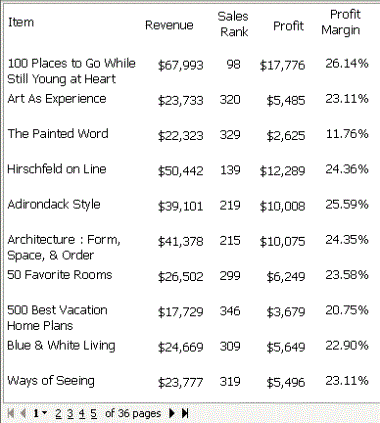
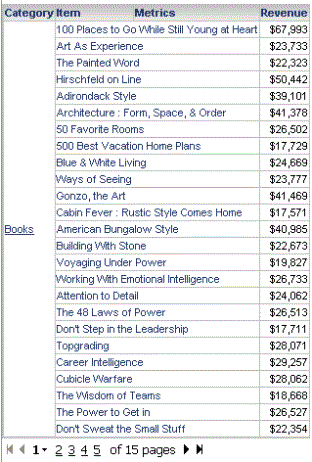
The batches of data are defined by the number of rows or blocks to return at a time. For example, a Grid/Graph on a document contains 360 rows. Incremental fetch is applied, with the number of rows per page set to 25. Only 25 rows are displayed on a single page of the Grid/Graph. Users can click the page numbers at the bottom of the screen to display more information. The document is shown below in Interactive Mode in MicroStrategy Web:
Comments

Post a Comment

Popular posts from this blog

MicroStrategy URL API Parameters

MicroStrategy URL Structure The following table summarizes the root URL structure used for every request to MicroStrategy Web. Environment Main Application URL Administration URL J2EE http://webserver/MicroStrategy/servlet/mstrWeb http://webserver/MicroStrategy/servlet/mstrWebAdmin .NET http://webserver/MicroStrategy/asp/Main.aspx http://webserver/MicroStrategy/asp/Admin.aspx Every request sent to MicroStrategy Web calls a central controller. Parameters are appended to  Main.aspx  or  mstrWeb  (in a .NET and J2EE environment, respectively) to indicate to the controller how the request should be internally forwarded and handled. The following examples show a URL for accessing a MicroStrategy folder when the user does not have an existing session. The URL contains not only the parameters needed to connect to MicroStrategy Web, but also the parameters needed to log on and create a session. J2EE environment: <a href="http:...

Create an alert-based subscription in MicroStrategy Distribution Services

Create an alert-based subscription in MicroStrategy Distribution Services on Web Subscription to a report or Report Services document which will be executed when a certain conditional threshold is met based on another executing report. For example, a scheduled report executes which shows the Revenue by day for the past week. If the Revenue on any one day falls below a certain value, a subscription to another report or Report Services document can be triggered and delivered to a recipient. An alert based subscription can only be created directly on a report; however, another report or Report Services document can be delivered when the alert based subscription is triggered. Note: you need a grid report to create an alert and you cannot create if you want to create on a document with text boxes. The following example will walk through the basic steps on how to setup a subscription based on an alert like this: Follow the brief  steps bel...

Create a transaction services photo uploader

Create a transaction services photo uploader   1.  Create a new table "photo_upload" in Tutorial warehouse database (the default location: C:\Program Files\MicroStrategy\Tutorial Reporting\TUTORIAL_DATA_7200.mdb), as shown below:    2. The 'photo_upload' table has to be pre-populated with *exactly* 10 rows of data, the values for the 'ID' column should be 1-10 and the values for the 'uploaded' column should all be 0 3.  In MicroStrategy Desktop, create a freeform report "R1" based on the new table "photo_upload" in Tutorial data created at step 1, as shown below:   SELECT Location, Description, ID, uploaded, numbers FROM PHOTO_UPLOAD 4.  Create another table for transaction insert SQL. Make sure to create an 'autonumber' type ID as primary key for this table, or auto_increment ID for different DBs.                     5. Create...

Microstrategy Dossiers explained

Microstrategy  Dossiers With the release of MicroStrategy 10.9, we’ve taken a leap forward in our dashboarding capabilities by simplifying the user experience, adding storytelling, and collaboration.MSTR has  evolved dashboards to the point that they are more than dashboards - they are  interactive, collaborative analytic stories . Ultimately, it was time to go beyond dashboards, both in concept and in name, and so  the've  renamed VI dashboards to  ‘ dossiers ’.  Dossiers can be created by using the new Desktop product or Workstation or simply from the Web interface which replaces Visual Insights. All the existing visual Insights dashboards will be converted to Dossiers   With MicroStrategy 10.9, there was an active focus on making it easier to build dashboards for the widest audience of end users. To achieve this, some key new capabilities were added that make it easier to author, read, interact and collaborate on dashboards ...

Reduce Intelligent Cube Size By Finding Intelligent Cube Objects Which Are Not In Use

Reduce Intelligent Cube Size By Finding Intelligent Cube Objects Which Are Not In Use If the i-cubes can potentially be reduced in size an audit can be performed on the cube objects to see which cube objects are not being used by any of the view reports, documents, or dossiers.   The below are examples for a few of the common metadata database platforms . NOTE: To perform this audit, queries are run against the MicroStrategy metadata database. Ensure a metadata backup is taken prior to performing the below actions. Steps: 1) Identify the object ID of the Intelligent cube to be audited by checking the objects Property window 2) Identify the object ID of the project this cube exists within by opening the Project Configuration Sample Cube ID =   CFAF1E9B4D53990698C42E87C7AF2EB5 Sample Project ID =  B7CA92F04B9FAE8D941C3E9B7E0CD754   3) Run the below SQL against the metadata database by replacing the Cube ID and Project ID within the respective ...

Fiscal Week, Fiscal Month, Fiscal Quarter and Fiscal Year calculations in Microstrategy

Fiscal Week, Fiscal Month, Fiscal Quarter and Fiscal Year calculations in Microstrategy FiscalWeek Returns the numeric position of a week within a fiscal year, for a given  input date. This function is useful in financial reporting when the start of the fiscal year is different than the start of the calendar year. Syntax FiscalWeek< firstWeekDay ,  firstMonth >( Date / Time ) Where: • Date / Time  is the input date or timestamp. • firstWeekDay  (default value is 1) is a parameter that determines which day of the week is considered as the first day of the week. You can type an integer value from 1 to 7, with 1 representing Sunday, 2 representing Monday, and so on until 7 representing Saturday. • firstMonth  (default value is 1) is a parameter that determines which month is considered as the start of the fiscal year. You can type an integer value from 1 to 12, with 1 representing January, 2 representing February, and so on until ...

Microstrategy "Error type: Odbc error. Odbc operation attempted

 "Error type: Odbc error. Odbc operation attempted: SQLExecDirect. [HYT00:0: on SQLHANDLE] [MicroStrategy][ODBC Oracle Wire Protocol driver]Timeout expired" is shown when executing reports from Web When users are trying to execute some reports in MicroStrategy web in particular, they may receive the Error “SQL Generation Complete Index out of range” and “Timeout expired” error as shown below: Possible Causes: One possible cause is that the MicroStrategy Intelligence Server using a cached database connection that was already dropped by the RDBMS. To resolve this: Admin should delete the database connection caches and create a new DSNs in case they are sharing DSNs to connect to different databases. In addition, change the settings for the ‘Connection lifetime’ and the ‘Connection idle time out’.  Follow the steps below to perform the mentioned changes and verify the report after each step and some of the settings require i-server r...

Scheduling a report or document to be sent to an FTP in MSTR

Scheduling a report or document to be sent to an FTP server You can have a report or document automatically delivered to a location on your FTP server on a specific schedule. To do so, you must subscribe to the report or document, as described in the steps below. You can customize your subscription by typing macros in the  File Name ,  Sub-folder , or  Zip File Name  fields. These macros are automatically replaced with the appropriate text when the report or document is delivered. For example, you create a subscription to a document. If you type  {&Project}  in the  File Name field, the name of the project in which the document is saved is displayed in the name of the document when it is delivered. • This procedure assumes that an administrator has already added your FTP server as a new device in Developer. Steps to do so are included in the  System Administrator Help . To send a report or document to an FTP server on a schedule ...

Microstrategy Custom number formatting symbols

Custom number formatting symbols If none of the built-in number formats meet your needs, you can create your own custom format in the Number tab of the Format Cells dialog box. Select  Custom  as the Category and create the format using the number format symbols listed in the table below. Each custom format can have up to four optional sections, one each for: Positive numbers Negative numbers Zeros Text Each section is optional. Separate the sections by semicolons, as shown in the example below: #,###;(#,###);0;"Error: Entry must be numeric" For more examples, see  Custom number formatting examples . To jump to a section of the formatting symbol table, click one of the following: Numeric symbols Character/text symbols Date and time symbols Text color symbols Currency symbols Conditional symbols Numeric symbols For details on how numeric symbols apply to the Big Decimal data type, refer to the  Project Design Guide . ...

No 'Alert' option appear when trying to create an alert-based subscription in MicroStrategy Distribution Services

The 'Alert' option does not appear when attempting to create an alert-based subscription in MicroStrategy Distribution Services In MicroStrategy Distribution Service 9.x and 10.x, and 11.x versions it is possible to create an alert-based subscription. When right-clicking the metric header of a report in MicroStrategy Web 9.0.x, the 'Alerts' option does not appear:    Cause : This issue occurs because the user attempting to create the alert does  not have all of the necessary privileges on alerts.   Fix : In order to create an alert-based subscription, the following privileges are required: In order ti get permissions to create alerts the user should be given the following privileges by the admin: New Version of Microstrategy 11.x: Server- Distribution: Older Versions of Microstrategy 9.x, 10.x etc..: Web Reporter > Web user Web Analyst > Web create alert   ...