
Slowly Changing Dimension Types 0, 4, 5, 6 and 7

Slowly Changing Dimension Types 0, 4, 5, 6 and 7

Ralph introduced the concept of slowly changing dimension (SCD) attributes in 1996. Dimensional modelers, in conjunction with the business’s data governance representatives, must specify the data warehouse’s response to operational attribute value changes. 
Core SCD approaches: 
Type 1 (overwrite), 
Type 2 (add a row), and 
Type 3 (add a column). 
Since legibility is a key component of the Kimball mantra, we sometimes wish Ralph had given these techniques more descriptive names, such as “overwrite” instead of “type 1.” But at this point, the SCD type numbers are part of our industry’s vernacular.
We have written about more advanced SCD patterns, such as the 2005 article entitled “Slowly Changing Dimensions are Not Always as Easy as 1, 2, 3.” However, we’ve not consistently named the more advanced and hybrid techniques. With the third edition of The Data Warehouse Toolkit (Wiley, 2013), we’ve decided to assign “type numbers” to several techniques that have been described, but not precisely labeled in the past. Our hope is that more specific technique names will facilitate clearer communication between DW/BI team members.
Type 0: Retain Original
With type 0, the dimension attribute value never changes, so facts are always grouped by this original value. Type 0 is appropriate for any attribute labeled “original,” such as a customer’s original credit score, or any durable identifiers. Type 0 also applies to most date dimension attributes.
Type 4: Add Mini-Dimension
The type 4 technique is used when a group of dimension attributes are split off into a separate mini-dimension. This approach is useful when dimension attribute values are relatively volatile. Frequently-used attributes in multi-million row dimension tables are also mini-dimension design candidates, even if they don’t change frequently. A surrogate key is assigned to each unique profile or combination of attribute values in the mini-dimension. The surrogate keys of both the base dimension and mini-dimension profile are captured as foreign keys in the fact table.
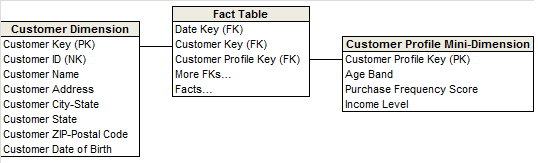
The following type 5, 6, and 7 techniques are hybrids that combine the basics to support the common requirement to both accurately preserve historical attribute values, plus report historical facts according to current attribute values. The hybrid approaches provide more analytic flexibility, albeit with greater complexity.
Type 5: Add Mini-Dimension and Type 1 Outrigger          
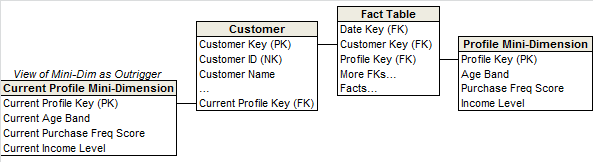
The type 5 technique builds on the type 4 mini-dimension by embedding a “current profile” mini-dimension key in the base dimension that’s overwritten as a type 1 attribute. This approach, called type 5 because 4 + 1 equals 5, allows the currently-assigned mini-dimension attribute values to be accessed along with the base dimension’s others without linking through a fact table. Logically, we typically represent the base dimension and current mini-dimension profile outrigger as a single table in the presentation layer. The outrigger attributes should have distinct column names, like “Current Income Level,” to differentiate them from attributes in the mini-dimension linked to the fact table. The ETL team must update/overwrite the type 1 mini-dimension reference whenever the current mini-dimension changes over time. If the outrigger approach does not deliver satisfactory query performance, then the mini-dimension attributes could be physically embedded (and updated) in the base dimension.
Type 6: Add Type 1 Attributes to Type 2 Dimension
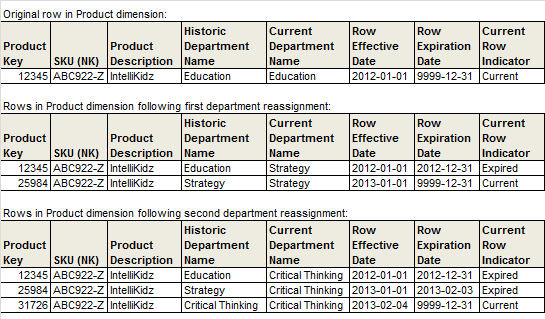
Type 6 builds on the type 2 technique by also embedding current attributes in the dimension so that fact rows can be filtered or grouped by either the type 2 value in effect when the measurement occurred or the attribute’s current value. The type 6 moniker was suggested by an HP engineer in 2000 because it’s a type 2 row with a type 3 column that’s overwritten as a type 1; both 2 + 3 + 1 and 2 x 3 x 1 equal 6. With this approach, the current attributes are updated on all prior type 2 rows associated with a particular durable key, as illustrated by the following sample rows:
Type 7: Dual Type 1 and Type 2 Dimensions
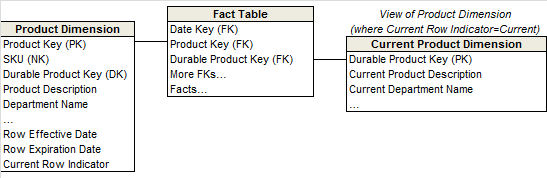
With type 7, the fact table contains dual foreign keys for a given dimension: a surrogate key linked to the dimension table where type 2 attributes are tracked, plus the dimension’s durable supernatural key linked to the current row in the type 2 dimension to present current attribute values.
Type 7 delivers the same functionality as type 6, but it’s accomplished via dual keys instead of physically overwriting the current attributes with type 6. Like the other hybrid approaches, the current dimension attributes should be distinctively labeled to minimize confusion.
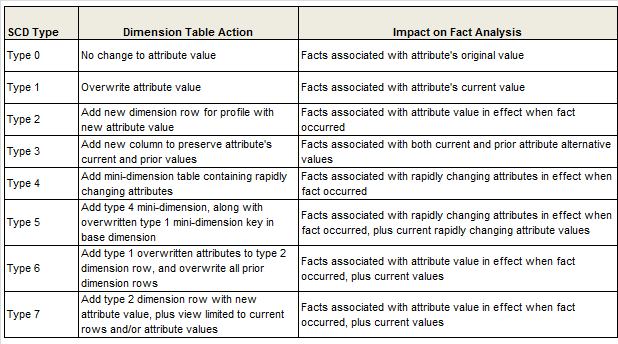
Finally, here’s a figure from the Data Warehouse Toolkit, Third Edition that highlights the implications of each slowly changing dimension technique on the analysis of fact table performance metrics. As we’ve warned in the past, there’s more to consider than simply 1, 2 and 3!
Comments

Popular posts from this blog

Microstrategy Custom number formatting symbols

Custom number formatting symbols If none of the built-in number formats meet your needs, you can create your own custom format in the Number tab of the Format Cells dialog box. Select  Custom  as the Category and create the format using the number format symbols listed in the table below. Each custom format can have up to four optional sections, one each for: Positive numbers Negative numbers Zeros Text Each section is optional. Separate the sections by semicolons, as shown in the example below: #,###;(#,###);0;"Error: Entry must be numeric" For more examples, see  Custom number formatting examples . To jump to a section of the formatting symbol table, click one of the following: Numeric symbols Character/text symbols Date and time symbols Text color symbols Currency symbols Conditional symbols Numeric symbols For details on how numeric symbols apply to the Big Decimal data type, refer to the  Project Design Guide . ...

Image URL Attribute type HTML Tag in Microstartegy

Creating and attribute with a form with Image URL Image URL Attribute: <img src='images\Folder\UBD\nstudios\N/A.png' height='120' width='163'> <img src='images\Folder\UBD\nstudios\BCU.png' height='120' width='163'> <img src='images\Folder\UBD\nstudios\IUM.png' height='120' width='163'> <img src='images\Folder\UBD\nstudios\WAR.png' height='120' width='163'> <img src='images\Folder\UBD\nstudios\TVN.png' height='120' width='163'> <img src='images\Folder\UBD\nstudios\N/A.png' height='120' width='163'> <IMG src="../images/ 1.png"  height=80 width=400> Concat("../images/Dash/", Id, ".png") ApplySimple(" '<img src=../images/Dash/'+ltrim(str(#0))+'.png height=120 width=120>' ", Id) IF((StudioName = "OURS"), "Ours...

Create a transaction services photo uploader

Create a transaction services photo uploader   1.  Create a new table "photo_upload" in Tutorial warehouse database (the default location: C:\Program Files\MicroStrategy\Tutorial Reporting\TUTORIAL_DATA_7200.mdb), as shown below:    2. The 'photo_upload' table has to be pre-populated with *exactly* 10 rows of data, the values for the 'ID' column should be 1-10 and the values for the 'uploaded' column should all be 0 3.  In MicroStrategy Desktop, create a freeform report "R1" based on the new table "photo_upload" in Tutorial data created at step 1, as shown below:   SELECT Location, Description, ID, uploaded, numbers FROM PHOTO_UPLOAD 4.  Create another table for transaction insert SQL. Make sure to create an 'autonumber' type ID as primary key for this table, or auto_increment ID for different DBs.                     5. Create...

OLAP features in Microstrategy

OLAP features in Microstrategy MSTR  OLAP Services uses Intelligent Cube Technology—an in-memory version of report data that can 1 About MicroStrategy OLAP Services  can be manipulated by the MicroStrategy Analytical Engine. MicroStrategy Desktop, Web, and Office users can slice and dice data in reports within Intelligent Cubes without having to re-execute SQL against the data warehouse.  Many of the standard OLAP features that MicroStrategy provides out of the box, such as: Page-by Pivoting Sorting Subtotals Banding Aliasing Outline mode Thresholds etc.. With an OLAP Services license, user can perform additional OLAP analysis, using the following features:  Displaying data on the fly: dynamic aggregation, page  Creating metrics on-the-fly: derived metrics, Defining attribute elements on-the-fly: derived elements,  Filtering data on the fly: view filters and metric filters,  Importing data as an Intelligent Cube

MicroStrategy URL API Parameters

MicroStrategy URL Structure The following table summarizes the root URL structure used for every request to MicroStrategy Web. Environment Main Application URL Administration URL J2EE http://webserver/MicroStrategy/servlet/mstrWeb http://webserver/MicroStrategy/servlet/mstrWebAdmin .NET http://webserver/MicroStrategy/asp/Main.aspx http://webserver/MicroStrategy/asp/Admin.aspx Every request sent to MicroStrategy Web calls a central controller. Parameters are appended to  Main.aspx  or  mstrWeb  (in a .NET and J2EE environment, respectively) to indicate to the controller how the request should be internally forwarded and handled. The following examples show a URL for accessing a MicroStrategy folder when the user does not have an existing session. The URL contains not only the parameters needed to connect to MicroStrategy Web, but also the parameters needed to log on and create a session. J2EE environment: <a href="http:...

Multi-Table Data Import(MTDI) from one or more supported data sources

Multi-Table Data Import(MTDI) from one or more supported data sources In MicroStrategy Analytics Enterprise Web 10 onewards, users can now simultaneously import two or more tables from one or more supported data sources, this feature is called Multi-Table Data Import (MTDI) which has been renamed as Super Cubes in MSTR 2019 (Does it sound like multisourcing for all the users without admin help?) Currently, all connectors in MicroStrategy Web 10 except " OLAP " and " Search Engine Indices " support Multi-Table Data Import. Users are able to add multiple tables/files when doing data import from single connector, as shown below: Users are also able to combine multiple tables/files from different sources and store them into one single Intelligent Cube, as shown below:

MicroStrategy VLDB properties with Hive

 Recommended VLDB Properties for use of  MicroStrategy 9 with Hive 0.7x The recommended VLDB optimizations for Hive 0.7x are listed below. These values are set by default when the "Hive 0.7x" database object is used (set at  Configuration Managers > Database Instances > Database Instance > Database connection type ) Selected Default VLDB Properties for Hive 0.7x  VLDB Category  VLDB Property Setting  Value   Tables  Fallback Table Type  Permanent Table  Tables  Maximum SQL Passes Before FallBack   0 (no threshold)  Tables  Maximum Tables in FROM Clause Before FallBack  0 (no threshold)  Tables  Drop Temp Table Method  Drop after final pass   Tables  Table Creation Type  Implicit Table  Query Optimizations   Sub Query Type   Use Temporary Table, falling back to IN (SELECT COL) for cor...

Microstrategy Document Autotext macros:

Autotext  code/macros in  Microstrategy Document/dashboard This is a list of the available auto text macros that the Report Services Document engine recognizes. The following auto text codes allow you to add  document variable information to your document. These auto text codes are automatically replaced by information about the document. Auto text codes for MSTR document/dashboard:  AUTOTEXT DESCRIPTION   {&PAGE}  Display the current page.  {&NPAGES}  Display the total number of pages.  {&DATETIME}  Display the current date and time.  {&USER}  Display the user name that is executing the Report Services Document.  {&DOCUMENT}  Display the document name.  {&DOCUMENTID}  Display the document ID.  {&DESCRIPTION}  Display the document description.  {&PROJECT}  Display the project name.  {&EXECUTIONTIME}  Dis...

Scheduling a report or document to be sent to an FTP in MSTR

Scheduling a report or document to be sent to an FTP server You can have a report or document automatically delivered to a location on your FTP server on a specific schedule. To do so, you must subscribe to the report or document, as described in the steps below. You can customize your subscription by typing macros in the  File Name ,  Sub-folder , or  Zip File Name  fields. These macros are automatically replaced with the appropriate text when the report or document is delivered. For example, you create a subscription to a document. If you type  {&Project}  in the  File Name field, the name of the project in which the document is saved is displayed in the name of the document when it is delivered. • This procedure assumes that an administrator has already added your FTP server as a new device in Developer. Steps to do so are included in the  System Administrator Help . To send a report or document to an FTP server on a schedule ...

Reduce Intelligent Cube Size By Finding Intelligent Cube Objects Which Are Not In Use

Reduce Intelligent Cube Size By Finding Intelligent Cube Objects Which Are Not In Use If the i-cubes can potentially be reduced in size an audit can be performed on the cube objects to see which cube objects are not being used by any of the view reports, documents, or dossiers.   The below are examples for a few of the common metadata database platforms . NOTE: To perform this audit, queries are run against the MicroStrategy metadata database. Ensure a metadata backup is taken prior to performing the below actions. Steps: 1) Identify the object ID of the Intelligent cube to be audited by checking the objects Property window 2) Identify the object ID of the project this cube exists within by opening the Project Configuration Sample Cube ID =   CFAF1E9B4D53990698C42E87C7AF2EB5 Sample Project ID =  B7CA92F04B9FAE8D941C3E9B7E0CD754   3) Run the below SQL against the metadata database by replacing the Cube ID and Project ID within the respective ...